


Use EPD: After Invoice Approval
Use Early Payment Requests to offer a discount to your Coupa buyer on approved invoices in exchange for faster payment. You get the decision in real time, and requests and decisions can be automated, based on your buyer's Early Payment Discount program.
Upgrade to Premium Support! Our team of dedicated experts is ready to provide you with priority assistance, personalized solutions, and rapid issue response.
Early Payment Discounts: After Invoice Approval enables you to receive early payments by offering your buyers discounts on approved invoices. You propose your own early payment discount terms with an Early Payment Request after an invoice has already been approved. You can also use automation to get immediate Auto Discount for pre-approved invoices.
For more information, see Early Payment Discounts.
Use Early Payment Discounts on Approved Invoices
If your Coupa customer wants to use Early Payment Discounts (EPD) with you, they can enroll you in an After Invoice Approval early payment program in their Coupa instance, which sends you a notification that you've been enrolled. This allows you to offer your customer discounts on eligible approved invoices in exchange for them paying you early. You choose the discount percentage you offer your customer for eligible approved invoices, which lets them decide whether they want to pay early to receive the discount.
Once you are enrolled in the After Invoice Approval discount program, you can start sending early payment requests to the customer who enrolled you. If you want to automate the sending of early payment requests, you can enable the Auto Discount setting.
Review Invoices Eligible for Early Payment
You can review the invoices you are eligible to request early payment for by going to Payments > Early Payments.
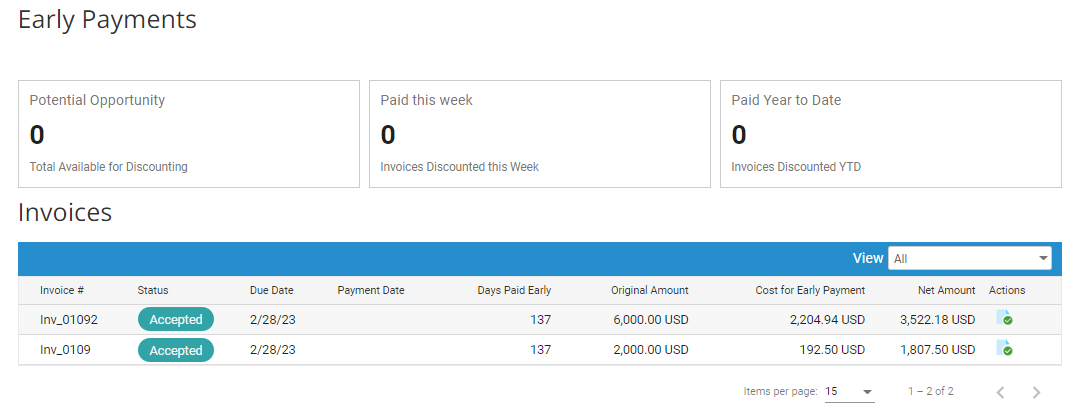
The Invoices table below the tiles shows you the invoices that you can submit for early payment.
If you select Payments > Early Payments and see an error message that you are not assigned to a customer with an Early Payment Discount program, an admin user should go to Setup > Admin > Users and take the following steps:
- In the table under Actions, select Edit to open the user access window.
- Under Permissions, if the Early Payments checkbox is already active, deactivate it and then activate it again. If it is not active, activate it.
- Select Save.
See and Use the Status of Eligible Invoices for Early Payment Requests
You can filter for and see the status of an eligible invoice in the table.
| Status | Description |
|---|---|
| Eligible | Invoice is available for you to submit for an Early Payment Request for a discount. |
| Submitted | Invoice submitted for early payment discount and pending customer's decision. This is a transitional state that should change within a few seconds. |
| Pending Review | Invoice submitted and is pending customer's review. An invoice in this status will expire at the end of the next business day if your customer doesn't act on it. |
| Accepted | Invoice submitted for early payment discount and accepted by the customer. |
| Paid Early | Invoice submitted for early payment discount, accepted, and paid early by the customer. |
| Expired | Invoice submitted for early payment discount, but the customer didn’t review it by the end of the following business day. You can re-submit it again for early payment. |
| Invalid | Invoice is no longer eligible for discount based on the customer's early payment program settings. |
| Rejected | Invoice submitted for early payment discount but rejected by the customer. You can re-submit it with a different offer. |
When you select the Get Paid Faster option from your customer's GET PAID EARLY email or from the Invoices table on Early Payments, the CSP navigates you to the Payment Request Details screen that shows you more information about the request.
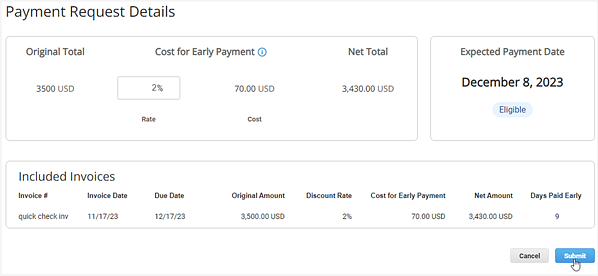
Payment Request Details
| Column/Tile | Description |
|---|---|
| Original Total | Total invoice amount before discounts. |
| Cost for Early Payment | Discount amount. |
| Net Total | Total invoice amount after discounts are applied. |
| Expected Payment Date | Date the invoice is expected to be paid early. |
Included Invoices Table
| Column | Description |
|---|---|
| Invoice # | Invoice number. |
| Invoice Date | Date the invoice was created. |
| Due Date | Date the invoice is due. |
| Original Amount | Total invoice amount before discounts. |
| Discount Rate | Early Payment Discount percentage offered. |
| Cost for Early Payment | Discount amount. |
| Net Amount | Total invoice amount after discounts are applied. |
| Days Paid Early | Number of days before the invoice due date that it was paid. |
Submit an Early Payment Request
- Go to Payments > Early Payments.
- In the Eligible Invoices table, select the invoice(s) with an Eligible status that you want to submit for early payment by clicking the the Get Paid Faster
 icon. You can select multiple invoices if they have the same due date.
 - In the Payment Request Details table, enter the discount percentage you want to offer your customer in the Rate field under Cost for Early Payment.
- Click Submit.
- If the Rate that you offer matches your customer's offer, you get an Accepted notification under the Expected Payment Date for the invoice.
- If your rate does not match your customer's, you get a rejection notification. You can then change your Rate under Cost for Early Payment and resubmit it.
Enable Auto Discount
If you want to take advantage of every discounting opportunity for all your invoices, you can activate the Enable Auto Discount feature. This will automatically discount all future invoices. The discount Rate and Cost for Early Payment are then automatically based on how early you get paid.
If you have the Admin permission in the CSP, you can configure auto-discounting for invoices from After Invoice Approval discount programs. The invoices are then automatically approved.
- Go to Payments > Early Payments.
- From the data table, select Enable Auto Discount.
- All future approved invoices will be automatically submitted for discounting. The discount Rate and Cost for Early Payment are then automatically based on how early you get paid.
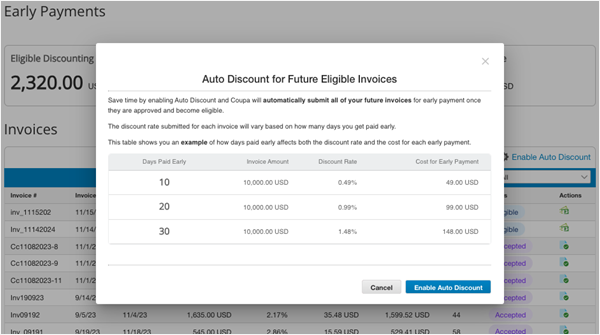
Use Credit Notes on Approved Invoices
To account for an early payment discount on an approved invoice, many countries require you as a supplier to issue a credit note to to the buyer. Coupa makes this process easier by creating a draft credit note for you when early payment is made by the buyer. This credit note is helpful for both you and your Coupa customer to balance out your invoiced and paid amounts.
For more information, see Apply Credit Notes to Approved Invoices for Early Payment Discounts.
Didn't find what you were looking for? Upgrade to Premium Support today to unlock more support functionality.