


Treasury CSV Exports
View available Standard export integrations and download example files, and configure custom CSV export integrations.
Use these guidelines when setting up Standard or custom Treasury CSV exports:
- Columns are not configurable. All Treasury exports contain the full set of available fields.
- Always build your integrations using file headers instead of column positions, as positions are subject to change.
- Exported data cannot exceed the supported limit of 150,000 rows.
- For more information on the elements for the CSV exports, refer to the API documentation in the Treasury application. See View Treasury API Documentation.
For more information, see Using the Flat File Format.
Available Standard exports
File names contain the object name, date, timestamp, and an integer to prevent overwriting existing files. For example: AccountBalance_20250402_104107+0.
sFTP folders are located under /Outgoing followed by a dedicated folder per object. For example: /Outgoing/AccountBalances. The folders are automatically created once the export triggers.
For examples of exports, download the example export files ZIP.
| Export name | Description | Folder without subfolder specified |
|---|---|---|
|
Account Balance |
Exports the value date balances of all valid accounts for d-2, d-1,d,d+1,d+2, whereas d is today |
/Outgoing/AccountBalances
|
|
Account Interest Details |
Exports all records that are valid at the time of the export |
/Outgoing/AccountInterestDetailsClassics |
|
Account Statement |
Exports all not yet exported account statements created within the last 7 days |
/Outgoing/AccountStatements |
|
Bulk Direct Debit |
Exports all records created or updated within the last 7 days |
/Outgoing/BulkDirectDebits |
|
Bulk Direct Debit Details |
Exports all records created or updated within the last 7 days |
/Outgoing/BulkDirectDebitDetails |
|
Bulk Payment |
Exports all records created or updated within the last 7 days |
/Outgoing/BulkPayments |
|
Bulk Payment Details |
Exports all records created or updated within the last 7 days |
/Outgoing/BulkPaymentDetails |
|
Cash Flow |
Exports all cash flows created since prior day (yesterday) |
/Outgoing/CashFlows |
|
Commodity Classic Deal |
Exports all outstanding deals |
/Outgoing/CommodityClassicDeals |
|
Commodity Classic Payment Plan |
Exports all commodity payments that are due today or in the future |
/Outgoing/CommodityClassicPayments |
|
Credit Line |
Exports all outstanding deals |
/Outgoing/CreditLines |
|
Credit Line Utilization |
Exports today's utilization for all outstanding credit lines |
/Outgoing/CreditLIneUtilizations |
|
Foreign Exchange Deal |
Exports all outstanding deals |
/Outgoing/ForeignExchangeDeals |
|
Foreign Exchange Option Deal |
Exports all outstanding deals |
/Outgoing/ForeignExchangeOptionClassicDeals |
|
GL Entry |
Exports GL entries that have not been exported |
/Outgoing/GlEntries |
|
Guarantee |
Exports all outstanding guarantees (return date today or in the future) |
/Outgoing/GuaranteeClassicDeals |
|
Intercompany Payment |
Exports all not yet exported records created or updated within the last 7 days |
/Outgoing/IntercompanyPayments |
|
Interest Rate Options |
Exports all outstanding deals |
/Outgoing/InterestRateOptionsClassics |
|
Interest Rate Swap |
Exports all outstanding deals |
/Outgoing/InterestRateSwapClassicDeals |
|
Interest Rate Swap Lifecycle Event (Options) |
Exports all lifecycle events on outstanding deals |
/Outgoing/InterestRateSwapClassicOptions |
|
Interest Rate Swap Payment Plan |
Exports all payment plans where at least one payment of that plan is in the future or today |
/Outgoing/InterestRateSwapClassicPaymentPlans |
| Leases Export | Exports all outstanding deals | /Outgoing/LeasesClassics |
| Leases Lifecycle Event (Options) | Exports all lifecycle events on outstanding deals | /Outgoing/LeasesClassicOptions |
| Leases Payment Plan | Exports payment plans of all outstanding deals | /Outgoing/LeasesClassicPaymentPlans |
|
Letter of Credits |
Exports all outstanding letters of credit (settlement date of today or in the future) |
/Outgoing/LetterOfCreditClassicDeals |
|
Liquidity Planning Data |
Exports all records created or updated since the last business day (ultimo) of 2 months ago |
/Outgoing/LiquidityPlanningData |
|
Long Term Loan |
Exports all outstanding deals |
/Outgoing/LongTermLoans |
|
Long Term Loan Lifecyle Event |
Exports all lifecycle events on outstanding deals |
/Outgoing/LongTermLoanClassicOptions |
|
Long Term Loan Payment Plan |
Exports all payment plans where at least one payment of that plan is in the future or today |
/Outgoing/LongTermLoanClassicPaymentPlans |
|
Money Market |
Exports all outstanding deals |
/Outgoing/MoneyMarketDeals |
|
Netting Items |
Exports all records created or updated within the last 31 days |
/Outgoing/NettingItemsClassics |
|
Netting Statements |
Exports all statements created within the last 31 days |
/Outgoing/NettingStatementsClassics |
|
(Planning) Category |
Exports all categories |
/Outgoing/PlanningCategories |
|
Portfolio |
Exports all active portfolios |
/Outgoing/TreasuryPortfolios |
|
Project |
Exports all active projects |
/Outgoing/TreasuryProjects |
|
Reconciliation Results |
Exports all records created within the last 7 days |
/Outgoing/ReconciliationResults |
|
Recon Invoice Archive |
Exports all records created or updated within the last 31 days |
/Outgoing/ReconInvoiceArchiveClassics |
|
Recon Invoice |
Exports all records created or updated within the last 31 days |
/Outgoing/ReconInvoiceClassics |
|
Securities |
Exports all outstanding deals |
/Outgoing/SecurityClassicDeals |
| Security Interest Rates and Fixings | Exports all interest rate changes resp. fixings with date greater or equal today | /Outgoing/SecurityClassicPaymentPlans |
| Security Payment Plan | Exports all payments with payment date greater or equal today | /Outgoing/SecurityClassicInterestRatesAndFixings |
|
Security Transactions |
Exports all transactions of all outstanding deals |
/Outgoing/SecurityClassicTransactions |
|
Settlement |
Exports all records created or updated within the last 7 days |
/Outgoing/SettlementTransactions |
|
Settlement Flow |
Exports all records created within the last 7 days. |
/Outgoing/SettlementFlows |
|
(Payment) Signing Authority |
Exports all valid records |
/Outgoing/SigningAuthorities |
|
Single Direct Debit |
Exports all records created or updated within the last 7 days |
/Outgoing/SingleDirectDebits |
|
(Single) Payment |
Exports all records created or updated within the last 7 days |
/Outgoing/SinglePayments |
Custom Treasury export integrations
Custom Treasury export integrations are based on automation views that you configure on the respective menu items in Treasury Management.
This is supported for all objects in the new Treasury Management interface. For example, Cash Flows is supported, while Netting Items Classic is not. The Automation View field is only visible if this feature is supported for the selected object.
For more information, see Automation Views in Treasury Management.
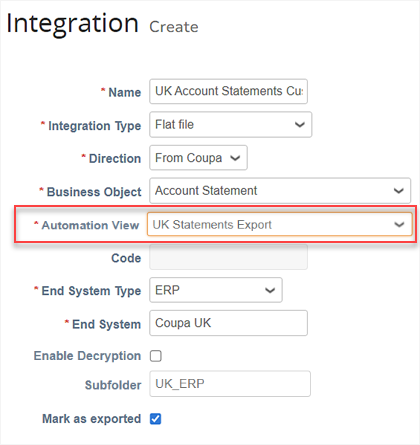

To use the self-service to create or edit outbound Treasury integrations, use the following steps:
- Go to Setup > Integrations > Integrations to configure your Treasury process.
- Select Create or use the pencil icon to open an existing custom integration.
- For Integration, select Flat file or Original format (see Treasury Original File Export Types).
- For Direction, select From Coupa.
- For Business Object, select the name of the Treasury object. The Automation View field appears when the object supports an integration that you can customize using self-service.
- Select a defined view from the Automation View field. This defines the filter parameters for your custom integration.
- You must also select your End System Type and End System.
- You can use the optional Subfolder field to specify a string that is valid to be a subfolder. If you don't enter a string for the subfolder, nothing is specified and the sFTP folder for the business object is used without a subfolder.
- You can select Enable Encryption if you use a PGP key on the sFTP account level and need the export of this integration to be encrypted.
- It's best practice to activate the Mark as Exported option where available, for example for bank files, account statements, and general ledger (GL) entries. Then you can exclude the exported data from the menu items in Treasury Management when you save new automation views. This helps ensure your automation views only capture items not yet exported and reduces the risk of duplicate exports. For more information, see Use automation views for custom Treasury outbound integrations.
- Save the integration.

For more information, see Standard Flat File Export Configurations.
After you save an integration, you schedule integration runs from the Integrations data table. To schedule integration runs, use the following steps:
- Use the pencil icon to open and edit the integration from the data table.
- In the Edit dialog, activate Enable Scheduler.
- For Schedule, configure an available setting, for example Every 30 minutes.
- Save your configuration.
For more information, see Manage Treasury integrations.